

5 easy steps to fix ERP Failed Automation Schedule
You have set up an automated email schedule in your ERP Cloud, grab a coffee, and wait for those emails to roll out… but nothing happens. Sounds frustrating, right?
Why are your ERP automation schedule emails not being sent out?
This issue often happens after a scheduled maintenance, system upgrade, or even a snapshot restore, messing with your settings. Before you start drafting an angry email to the IT Team, here are a few quick checks that can save you hours of frustration.
5 Steps to fix the failed automation schedule on ERP system
Step 1: Sign in as an administrator and open Automation Schedule Statuses form (SM205030). Click the Initialize Scheduler button on the toolbar to run the schedule.
It is noted that if the additional processing node is used, you can sign in it as an administrator to run the Initialize Scheduler button

Step 2: Still nothing? Go back to Automation Schedule Statuses, find the failing schedule under Screen ID and click the corresponding link to open it.

Step 3: On the Automation Schedules (SM205020) form, take screenshots of each tab (trust us, you'll need them). Then, hit Delete—yes, sometimes, a fresh start is the best fix.
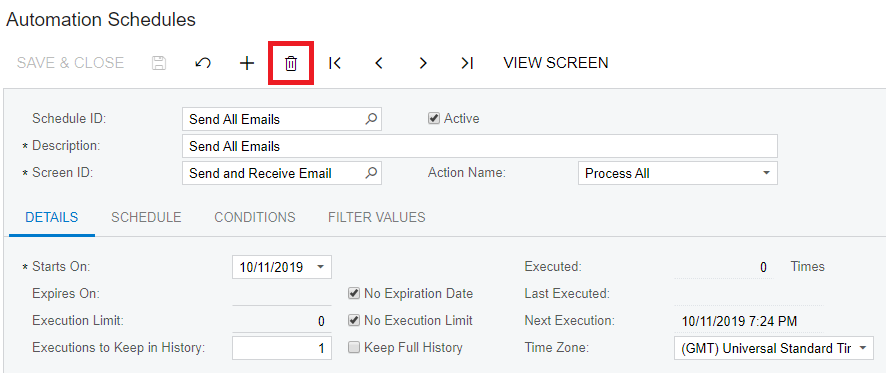
Step 4: Click Add New Record, recreate the schedule with same properties (referring to your screenshots), and make sure the Active checkbox is selected.

Check out the result now
Check the Automation Schedule Statuses form again and make sure that the schedule is present and active there. Verifying the Last Receive Date and Last Send Date update on the Send and Receive Email (SM507010) form once the schedule run finished. And just like that, your ERP is back on track.
Connect with innerCOP for more insights.


Comments